Bun Biome Template: Your JavaScript Project Starter
Learn what this template provides, clone it, and understand the project structure you'll use for the next few weeks.
Introduction
You've written JavaScript in the browser console. Now you'll work with a real project structure - the kind professional developers use.
What is this template? A pre-configured JavaScript project with:
- Bun: Fast JavaScript runtime (runs your code)
- Biome: Code formatter and linter (keeps code clean)
- VS Code settings: Auto-formatting and error detection
- Git: Already initialized and ready to push
Instead of setting up these tools manually for every assignment, you clone this template and start coding immediately.
The pattern: Each assignment gives you a fresh copy of this template through GitHub Classroom. Same tools, same structure, different code challenges.
What You'll Learn Today
- How to accept and clone GitHub Classroom assignments
- What JSON is and why it matters
- What
package.jsondoes - Why VS Code extensions matter
- Where to write your code
Important: You'll clone this template for each assignment. Same structure, fresh start each time.
Hands-On Application
Step 1: Clone the Template
Navigate to your Dev folder:
cd ~/Dev
Clone the template using the link your instructor provided:
- Click the GitHub Classroom assignment link (from BrightSpace or Teams)
- Accept the assignment - GitHub creates your personal copy
- On the repository page, click the green "Code" button
- Select "GitHub CLI" and copy the command
- Paste it in your terminal and press Enter
The command will look like:
gh repo clone 177-ss-2026/bun-biome-template-yourname
(Your actual command will have your GitHub username at the end)
Navigate into the project (use your actual folder name):
cd bun-biome-template-yourname
ls
You should see several files. We'll examine each one.
Step 2: Verify Bun Works
Before installing dependencies, confirm Bun is installed:
bun --version
You should see a version number like 1.x.x.
If you get "command not found": Bun isn't installed. Go back to your OS setup guide and install it:
Step 3: Install Dependencies
bun install
This downloads the tools the project needs. You'll see output showing packages being installed.
Step 4: Open in VS Code
code .
CRITICAL: When VS Code opens, you'll see a notification asking to install recommended extensions.
CLICK "INSTALL ALL".
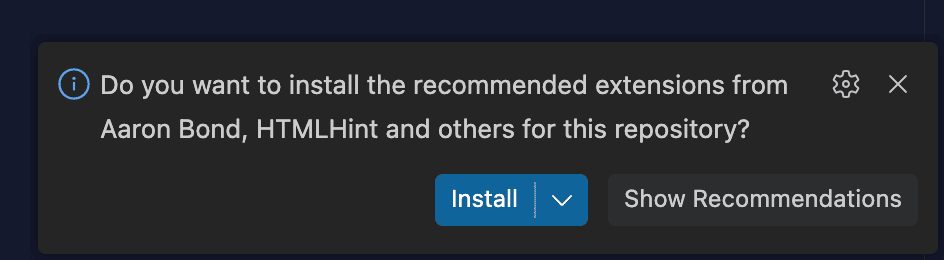
These extensions are required:
- Biome: Formats your code automatically
- Error Lens: Shows errors inline
- GitHub Copilot: AI assistance
Without these extensions, your code won't format correctly and you'll miss errors.
If you don't see the prompt, install them manually:
- Press
Cmd + Shift + X(Mac) orCtrl + Shift + X(Windows) to open Extensions - Search for each extension by name (copy/paste from the list above)
- Click "Install" for each one
Verify Copilot is working: Look at the bottom-right corner of VS Code. You should see the Copilot icon with a checkmark. If you see an error or "not authorized", click it and sign in with your GitHub account.
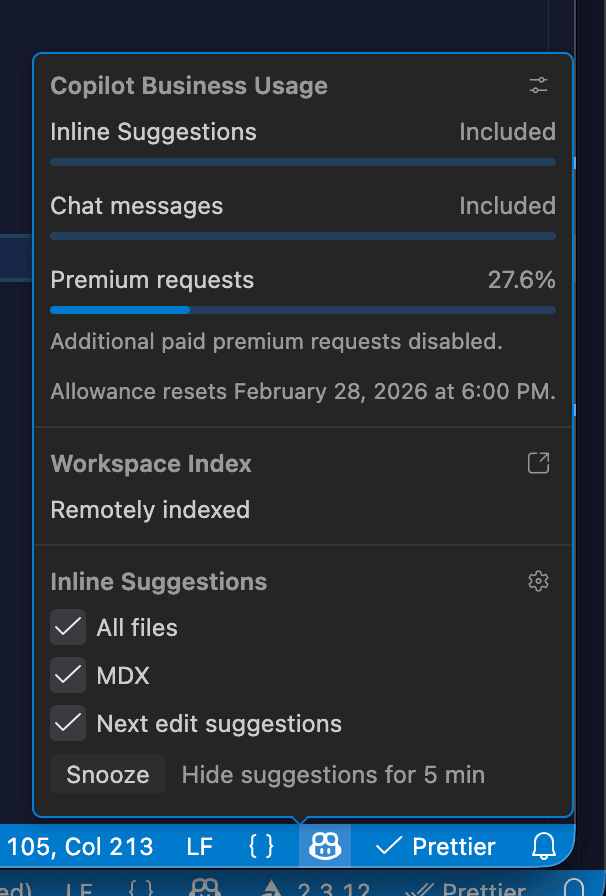
Tip: While exploring the template, disable Copilot completions temporarily so you can focus on understanding the files without AI suggestions popping up.
Step 5: Run the Project
In your terminal (still inside the project folder):
bun run index.js
Expected output:
Hello via Bun (plain JS)!
If you see this message, everything works. You've successfully:
- Cloned the template
- Installed dependencies
- Verified Bun installation
- Run JavaScript code with Bun
If you get an error:
- Make sure you're in the right folder (
pwdshould show your template folder name) - Make sure you ran
bun install - Check that
index.jsexists (lsshould list it)
Understanding the Files
What is JSON?
Open package.json in VS Code. You'll see something like this:
{
  "name": "bun-biome-template",
  "type": "module",
  "main": "index.js"
}
JSON stands for JavaScript Object Notation. It's a way to store structured data in plain text.
Key features:
- Uses curly braces
{} - Key-value pairs separated by colons
- Keys must be in double quotes
- Values can be strings, numbers, booleans, arrays, or objects
Sound familiar? JSON looks like JavaScript objects because it IS based on JavaScript syntax. You'll learn objects soon - for now, just know JSON is how we store configuration.
package.json: The Project Manifest
This file describes your project. Every JavaScript project has one.
Important sections:
{
  "name": "bun-biome-template",
  "type": "module",
  "main": "index.js",
  "scripts": {
    "start": "bun run index.js",
    "format": "biome format --write ."
  },
  "devDependencies": {
    "@biomejs/biome": "2.3.12"
  }
}
What each part means:
name: Project identifiertype: "module" means we use modern JavaScript importsmain: Entry file - what runs when you execute the projectscripts: Commands you can run withbun rundevDependencies: Tools needed for development
Other languages have similar files:
- Python:
pyproject.toml(modern) orrequirements.txt(older) - Java:
pom.xml(Maven) orbuild.gradle(Gradle) - C#:
.csprojfiles - Ruby:
Gemfile - Rust:
Cargo.toml
Think of package.json as the blueprint for your project - it defines what the project is, what it needs, and how to run it.
.vscode/settings.json: Editor Configuration
Open .vscode/settings.json. You'll see settings that control VS Code behavior:
{
  "editor.formatOnSave": true,
  "editor.defaultFormatter": "biomejs.biome",
  "files.autoSave": "onFocusChange",
  "editor.bracketPairColorization.enabled": true
}
What these settings do:
formatOnSave: Automatically formats your code when you save (Cmd+S or Ctrl+S)defaultFormatter: Uses Biome to format code consistentlyautoSave: Saves your file when you click away from VS CodebracketPairColorization: Colors matching brackets to help you spot errors
Other helpful settings in this file:
autoClosingBrackets: Automatically adds closing brackets when you type opening oneslinkedEditing: Renames matching HTML/JSX tags togethercodeActionsOnSave: Fixes errors and organizes imports automatically when you save
Why this matters: These settings save you from tedious formatting work and catch mistakes automatically. You'll never submit code with inconsistent spacing or missing brackets.
Don't change these settings. They're configured to match course standards.
.vscode/extensions.json: Required Extensions
This file tells VS Code which extensions you need:
{
  "recommendations": [
    "aaron-bond.better-comments",
    "biomejs.biome",
    "github.copilot-chat",
    "htmlhint.vscode-htmlhint",
    "ms-vsliveshare.vsliveshare",
    "streetsidesoftware.code-spell-checker",
    "usernamehw.errorlens",
    "yzhang.markdown-all-in-one"
  ]
}
When you opened the project, VS Code read this file and prompted you to install extensions.
What each extension does:
- Biome: Formats and lints your JavaScript code automatically
- GitHub Copilot Chat: AI assistant for explaining code and answering questions
- Error Lens: Shows errors directly in your code (red text inline instead of just squiggly lines)
- Code Spell Checker: Catches typos in variable names and comments
- Better Comments: Color-codes different types of comments (TODO, FIXME, etc.)
- HTMLHint: Checks HTML for common mistakes
- Markdown All in One: Helps write and preview Markdown files
- Live Share: Lets you pair program with classmates in real-time
If you didn't install them, do it now:
- Press
Cmd + Shift + X(Mac) orCtrl + Shift + X(Windows) - Search for each extension by name
- Click Install
These extensions work together: Error Lens shows you what's wrong, Biome fixes it automatically when you save, Copilot explains why it happened, and Code Spell Checker catches typos before they become bugs.
biome.json: Code Quality Rules
Open biome.json. You'll see rules for formatting and linting:
{
  "formatter": {
    "indentWidth": 2
  },
  "linter": {
    "rules": {
      "recommended": true,
      "style": {
        "useConst": "error",
        "useNamingConvention": "error"
      }
    }
  }
}
What this does:
- Formatting: Sets 2-space indentation (spaces, not tabs)
- Linting: Catches errors and enforces code quality standards
Key rules you'll encounter:
useConst: Forces you to useconstinstead ofletwhen variables don't changenoVar: Prevents using oldvarkeyword (we only useconstandlet)useNamingConvention: Enforces camelCase for variables and functionsuseSingleVarDeclarator: One variable per line (clearer code)organizeImports: Automatically sorts your import statements
When you'll see these in action:
- Write
let x = 5but never changex→ Biome shows error: "Use const instead" - Name a variable
my_variable→ Error: "Use camelCase" - Use
var→ Error: "Use const or let"
These errors appear as red squiggly lines. When you save, Biome auto-fixes what it can. For the rest, Error Lens shows you exactly what's wrong.
Don't change this file. These rules match the course coding standards and prepare you for professional development.
Warning: If Copilot or AI suggests disabling a rule to "fix" an error, don't do it. The error exists because your code violates a standard. Fix the code, not the rule. If you're stuck, ask your instructor.
index.js: Where Your Code Goes
Open index.js:
console.log("Hello via Bun (plain JS)!");
THIS IS WHERE YOU WRITE CODE.
For JavaScript assignments using this template:
- All your code goes in
index.js - One file, no complicated structure
- Focus on learning JavaScript, not project organization
To run your code:
bun run index.js
The Workflow
Every time you work on this project:
-
Open terminal, navigate to project:
cd ~/Dev/bun-biome-template-yourname(Replace with your actual folder name)
-
Open VS Code:
code . -
Edit
index.js -
Save file (
Cmd + SorCtrl + S)- Biome automatically formats your code
-
Run code:
bun run index.js -
Commit changes:
git add index.js
git commit -m "Add feature X"
git push
Key Takeaways
The only file you edit:
index.js: Where you write code
Files you need to understand (but don't edit):
package.json: Project manifest - lists dependencies and scripts.vscode/settings.json: Editor configuration - auto-formatting and auto-save.vscode/extensions.json: Required extensions - what to installbiome.json: Code quality rules - enforces standardsbun.lock: Dependency versions - Bun manages this automatically
Critical setup steps (for every assignment):
- Accept GitHub Classroom link
- Clone your repository
- Verify Bun is installed (
bun --version) - Run
bun install - Install VS Code extensions when prompted
- Write code in
index.js
JSON preview:
- JSON is structured data
- Uses curly braces and key-value pairs
- Similar to JavaScript objects (you'll learn these soon)
Self-Check
Answer in your notebook:
- Where do you get the clone command for assignments?
- What file describes your project's metadata and dependencies?
- Where do you write your JavaScript code in this template?
- What happens when you save a file in VS Code with Biome installed?
- What is JSON and why does it look familiar?
What's Next
You now understand the template structure. Every assignment follows the same pattern:
- Accept GitHub Classroom link
- Clone repository
- Verify Bun is installed
- Install dependencies
- Install extensions
- Code in
index.js - Commit and push
The next lesson teaches JavaScript values, types, and operators - the building blocks you'll use in index.js.
The template is ready. The workflow is clear. Now you'll write real code.