Learn Markdown
What is Markdown?
Markdown is a lightweight markup language that you can use to add formatting elements to plaintext text documents. The key benefits of using Markdown include:
- Simplicity: Easy to learn and use, with a straightforward syntax.
- Readability: Plain text files are easy to read and edit without specialized software.
- Versatility: Can be converted to HTML and other formats, making it ideal for web content.
You will quickly notice that this is like a light 🚨 version of HTML. The difference is that this cannot be rendered directly with a browser. Instead we need a markdown renderer. In addition, the styles 💄 are generally set by the aforementioned rendered. Summarily, this is a great tool for creating structured documents without the complexity of traditional word processors or HTML/CSS 💄.
What Markdown Isn't
Before we go further, it helps to know what Markdown is NOT:
- It is not HTML. Browsers do not understand
.mdfiles the way they understand.htmlfiles. - It is not a programming language. Markdown has no logic or variables—it's just text with simple formatting rules.
- It is not a WYSIWYG (What You See Is What You Get) document like Google Docs. You write plain text and a renderer turns it into styled output.
- It does not load in a browser by itself. If you open a
.mdfile in a browser, you'll typically just see plain text unless a site has a Markdown renderer (for example, GitHub does).
Think of Markdown as “nicely formatted notes” that become pretty only after a helper tool converts them.
File extensions: .txt vs .md vs .html
File extensions tell computers and browsers how to treat a file:
.txt— Plain text. No formatting rules. A browser or text editor shows the text exactly as written..md— Markdown text. Still plain text, but with special symbols (like#,*,[ ]) that a Markdown renderer can turn into headings, lists, and links..html— HyperText Markup Language. Browsers natively understand and render HTML, applying structure and styles.
Practical differences:
- Double-clicking
notes.txtopens a text viewer. No styling. - Double-clicking
readme.mdopens a text viewer (or a specialized app). In a browser without a renderer, it looks like plain text. On GitHub, it looks styled because GitHub renders it for you. - Double-clicking
index.htmlopens in your browser and renders with headings, paragraphs, images, etc., because browsers speak HTML.
Quick experiment
Try this to make the differences crystal clear:
- Create three files on your desktop or wherever you like. You can just use the GUI (right-click → New File) or a text editor. Name them:
sample.txtwith the text:# Hellosample.mdwith the text:# Hellosample.htmlwith the text:<h1>Hello</h1>
- Open each file:
sample.txtandsample.mdwill look almost the same in a plain text viewer.sample.htmlwill show a big “Hello” heading when opened in a browser.
- Create a Markdown Gist:
- Go to https://gist.github.com/.
- Paste
# Helloas the content. - In “Filename including extension,” name it
sample.md— the.mdextension tells GitHub to render Markdown. - As soon as you add the
.mdextension, you’ll see a tab that offers a preview of the rendered Markdown. - Click “Create secret gist” or “Create public gist.”
- You’ll see a styled heading because GitHub renders Markdown for
.mdfiles in Gists. - Reference: Creating a gist GitHub Docs
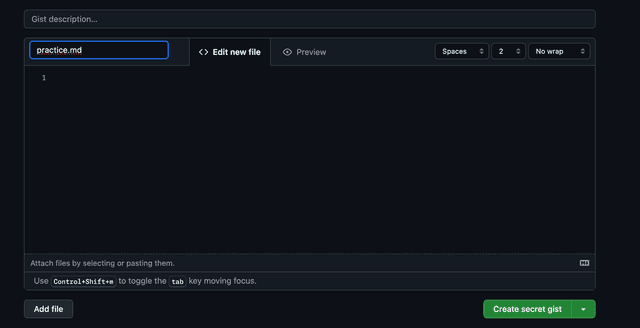
As you can see, the file extension plays a crucial role in how content is interpreted and displayed. In the MD file, the # symbol is recognized as a header indicator, while in the TXT file, it is treated as plain text. With that, since you now understand the importance of file extensions, let's move on to some basic Markdown syntax!
Basic Syntax
Here are some common Markdown syntax elements:
Headers
Use # for headers. The number of # symbols indicates the header level.
# Header 1

## Header 2

### Header 3
Emphasis
- Italic: Use single asterisks or underscores.
- Bold: Use double asterisks or underscores.
_Italic_ or _Italic_
**Bold** or **Bold**
Lists
- Unordered lists: Use asterisks, plus signs, or hyphens. Hot ♨️ tip: You can indent subitems with two spaces or a tab!
- Ordered lists: Use numbers followed by periods. Hot ♨️ tip: You can number everything with
1.and Markdown will auto-number it for you!
- Item 1
- Item 2
  - Subitem 1
  - Subitem 2

1. First item
2. Second item
Links
Create links using the following syntax:
[Link text](URL)
Example: [Google](https://google.com) becomes Google
Images
Images are similar to links but with an exclamation mark in front:

Example: 
Code
You can show code inline or in blocks:
- Inline code: Wrap text in single backticks:
`code here` - Code blocks: Use three backticks before and after:
```
const greeting = "Hello, world!";
```
Pro tip: Add a language name after the opening backticks for syntax highlighting:
```javascript
const greeting = "Hello, world!";
```
Blockquotes
Use > to create a blockquote:
> This is a quote.
Renders as:
This is a quote.
Common Mistakes
Here are some common mistakes to avoid when using Markdown:
- Forgetting to close emphasis tags: Ensure you close your italic or bold tags correctly. For example, use
_italic_instead of_italic. - Incorrectly formatting lists: Be consistent with your list formatting. Mixing ordered and unordered lists can lead to confusion.
- Not using the correct file extension: Always save your Markdown files with the
.mdextension to ensure proper rendering. - Missing blank lines: Many Markdown renderers need blank lines before and after headings, lists, and code blocks. When in doubt, add a blank line!
Preview Your Markdown
Since browsers don't render .md files directly, you need a tool to preview your work:
- GitHub Gist: Automatically previews
.mdfiles (as you saw in the experiment above) - VS Code: Built-in Markdown preview (right-click a
.mdfile → "Open Preview") - Dillinger: Online editor with live preview at dillinger.io
- JotBird: Publish Markdown as shareable web links at jotbird.com
- Notion: Supports Markdown shortcuts
- Google Docs: Can enable Markdown
Why so many tools? Different developers prefer different workflows. Some like online tools (Gist, Dillinger, JotBird), while others prefer working locally (VS Code). Try a few and see what fits your style!
Additional Resources
- Markdown Cheat Sheet
- Dillinger - Feel free to use this in addition to or as a replacement for GitHub Gist for creating and previewing your Markdown files
- VS Code Markdown Preview